
LG 32U990A-S 6K
3.9Editor score
Native 6K resolution
Wide professional color coverage
DisplayHDR 600 certification
Thunderbolt 5 connectivity
A monitor for retouching should make it easier to judge color, texture, shadow detail, and fine edits without introducing distracting inaccuracies. Resolution, color gamut, contrast, calibration, and connectivity all influence the result, while screen size and ergonomics become especially important during lengthy creative sessions.
We compared ten monitors using the supplied specifications, focusing on the qualities that matter to photographers, designers, and editors refining images. The list covers professional 4K and 6K displays, QHD OLED and IPS models, HDR options, budget choices, and versatile screens for mixed creative and gaming workflows.
Each review explains the strongest reasons to consider a model, along with its practical limitations and ideal user. Awards are reserved for the three leading choices, and current prices and availability can change, so readers should confirm the latest listing details before making a purchase.
3.9Editor score

4.4Editor score
4.5Editor score
As an Amazon Associate we earn from qualifying purchases.
This side-by-side comparison highlights the panel type, resolution, refresh rate, color capabilities, and creative strengths of every monitor in the guide, from a budget-friendly IPS model to a professional Thunderbolt 5 6K display.




The ASUS ROG XG27AQDMGR is a 27-inch QHD OLED monitor built around fast motion, rich color, and strong HDR performance. It carries a 4.6 rating, and its defining creative features include a 99% DCI-P3 gamut, true 10-bit color, and a stated Delta E below two, giving retouchers a capable foundation for judging saturated hues and nuanced skin tones.
We may earn a commission when you buy through this link, at no additional cost to you.
The TrueBlack glossy WOLED panel produces deep blacks and a wide color range, while VESA DisplayHDR 400 True Black compliance supports an image with brighter highlights and more dimensional shadows. Its 0.03ms gray-to-gray response time and 240Hz refresh rate are far beyond the needs of conventional photo editing, but they can make interface navigation, zoomed views, and animation work feel exceptionally immediate.
The glossy surface is the main compromise. It can reflect room light, which may make neutral color evaluation less convenient in a bright room, and the QHD pixel count is below the resolution offered by dedicated 4K creator displays. However, OLED Care Pro, the Neo Proximity Sensor, three-year warranty, and burn-in coverage add practical safeguards for a technology that otherwise invites some long-term concern.
This is a strong all-around choice for a retoucher who values color range, contrast, motion clarity, and HDR in one display. It is particularly appealing to editors who also play games or work with video. For fine still-image inspection, a 4K or 6K model may offer more working space, but this model delivers perhaps the most balanced combination of visual punch, speed, and creative features.
The 99% DCI-P3 coverage, 10-bit color, and sub-two Delta E specification make this useful for saturated creative work. DisplayHDR 400 True Black support further improves perceived contrast, particularly when judging deep shadows and bright highlights.
The 0.03ms response time keeps menus, zoomed images, and timeline playback responsive. Although every retoucher does not need 240Hz, the speed can make detailed work feel less sluggish than on conventional office displays.
We may earn a commission when you buy through this link, at no additional cost to you.
The Samsung Odyssey OLED G6 is the highest-rated monitor in this group, carrying a 4.7 rating. Its 27-inch QD-OLED display combines a QHD resolution with high brightness, broad color reproduction, and a 240Hz refresh rate, making it appealing to retouchers who want both a vibrant editing surface and a capable motion display.
We may earn a commission when you buy through this link, at no additional cost to you.
Color confidence comes from the Pantone Validated screen, which is described as accurately reproducing more than 2,100 colors and over 110 skin-tone shades. That focus is especially relevant for portrait, fashion, and commercial retouching, where subtle differences in skin tone can affect the final result. HDR10 support, a 0.03ms response time, and AMD FreeSync Premium also make the screen versatile for video and interactive work.
Samsung's OLED Safeguard thermal modulation system actively works to reduce burn-in risk, and Glare Free Technology helps maintain visibility without the distracting reflections associated with some glossy OLED designs. The limitation is resolution: QHD provides less canvas area and less fine detail than the 4K and 6K alternatives here, so demanding retouchers may find that panels and zoomed details require additional workspace.
The Odyssey OLED G6 is an excellent choice for a retoucher who prioritizes deep contrast, validated color, and smooth performance. It also works especially well for users who want one display for image editing, entertainment, and games. Choose it for visual impact and color confidence; choose a higher-resolution model when pixel density and side-by-side workspace matter more.
Pantone validation and support for more than 110 skin-tone shades give this display particular relevance for portrait and lifestyle work. It is a strong choice when smooth, lifelike color transitions matter as much as high contrast.
Glare Free Technology, an adjustable ergonomic stand, and OLED Safeguard make the monitor practical for extended use. These features complement the panel's visual strengths while reducing common concerns about reflections, positioning, and long-term panel care.
We may earn a commission when you buy through this link, at no additional cost to you.
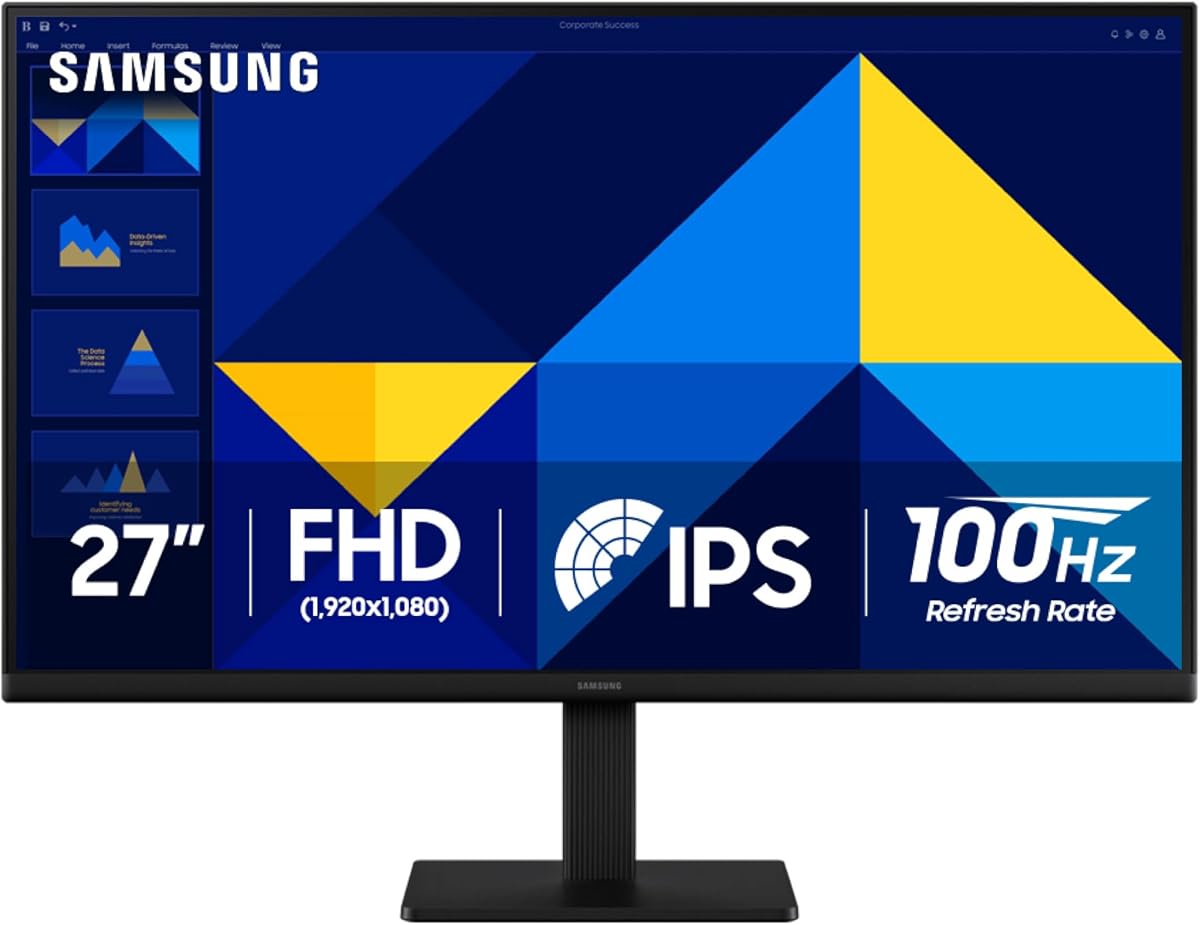
The Samsung Essential S30GD offers a straightforward path into color editing without the specialized feature set of a professional creator display. Its 4.5 rating reflects a well-rounded basic package, while the IPS panel provides consistent colors and viewing angles that make it more useful for retouching than a basic office monitor.
We may earn a commission when you buy through this link, at no additional cost to you.
A 100Hz refresh rate reduces lag and motion blur during work, video playback, and games. The display also includes adjustable color and contrast controls, a dedicated Game Mode, reduced blue-light output, and flicker reduction. Those features make it a sensible option for students, hobbyists, and emerging creators who want a comfortable screen for general editing and everyday use.
This model does not state a professional color-gamut percentage, factory calibration target, or HDR certification, so it should not be treated as a reference display for demanding color-critical assignments. Its QHD-class workspace is also smaller than that offered by 4K and 6K monitors. Even so, the listed color consistency, modern design, and 100Hz performance deliver more creative usefulness than many general-purpose alternatives.
The Samsung Essential S30GD is best for users who need an affordable first editing monitor or a secondary screen for cropping, web graphics, and routine adjustments. It is less suitable as the sole reference for high-end commercial color work, but its IPS panel and smooth operation make it a strong value-oriented starting point.
The IPS panel is designed to maintain bright, consistent colors as viewing angles change. That makes the display more practical when a large image is inspected at an angle or when the monitor is used in a shared workspace.
Reduced blue light, flicker reduction, and a 100Hz refresh rate support longer sessions. These qualities help preserve comfort, although color-critical users should still calibrate the display and control ambient lighting.
We may earn a commission when you buy through this link, at no additional cost to you.
The Samsung ViewFinity S7 is built around the resolution advantage that matters greatly to retouchers: 3840 x 2160 pixels on a 27-inch panel. With a 4.6 rating, it provides more usable detail and canvas space than the QHD models in the guide, making it a strong option for detailed masks, cleanups, and complex compositions.
We may earn a commission when you buy through this link, at no additional cost to you.
Its IPS foundation supports accurate color representation, while HDR10 adds brighter highlights, darker blacks, and a claimed gamut of more than one billion colors. Eye Saver Mode, certified by TÜV, reduces blue light and prevents screen flickering, which is useful for long editing sessions. HDMI and DisplayPort connectivity keeps setup straightforward for a laptop or desktop workstation.
The specifications do not mention factory calibration, a numeric Delta E rating, or wide professional gamut coverage. As a result, it may be less appropriate than the ASUS ProArt or LG UltraFine for a color-managed professional pipeline. The advantage here is primarily resolution and flexibility rather than laboratory-level accuracy, and users should expect to make their own adjustments for exacting work.
The ViewFinity S7 is a compelling choice for photo editors and designers who want 4K detail in a relatively compact 27-inch format. It is particularly useful for comparing crops, editing fine details, and maintaining a full-resolution canvas beside open tools. Those needing a calibrated reference display should look for a model with explicit factory-accuracy specifications.
A 4K UHD panel provides substantially more pixel density than the QHD choices. That extra resolution makes retouching at 100 percent magnification more revealing and reduces the need to alternate frequently between a scaled view and a magnified canvas.
HDR10 support can add depth to compatible images and videos, while Eye Saver Mode addresses blue light and flicker. Together they make the display practical for extended creative work and general productivity.
We may earn a commission when you buy through this link, at no additional cost to you.
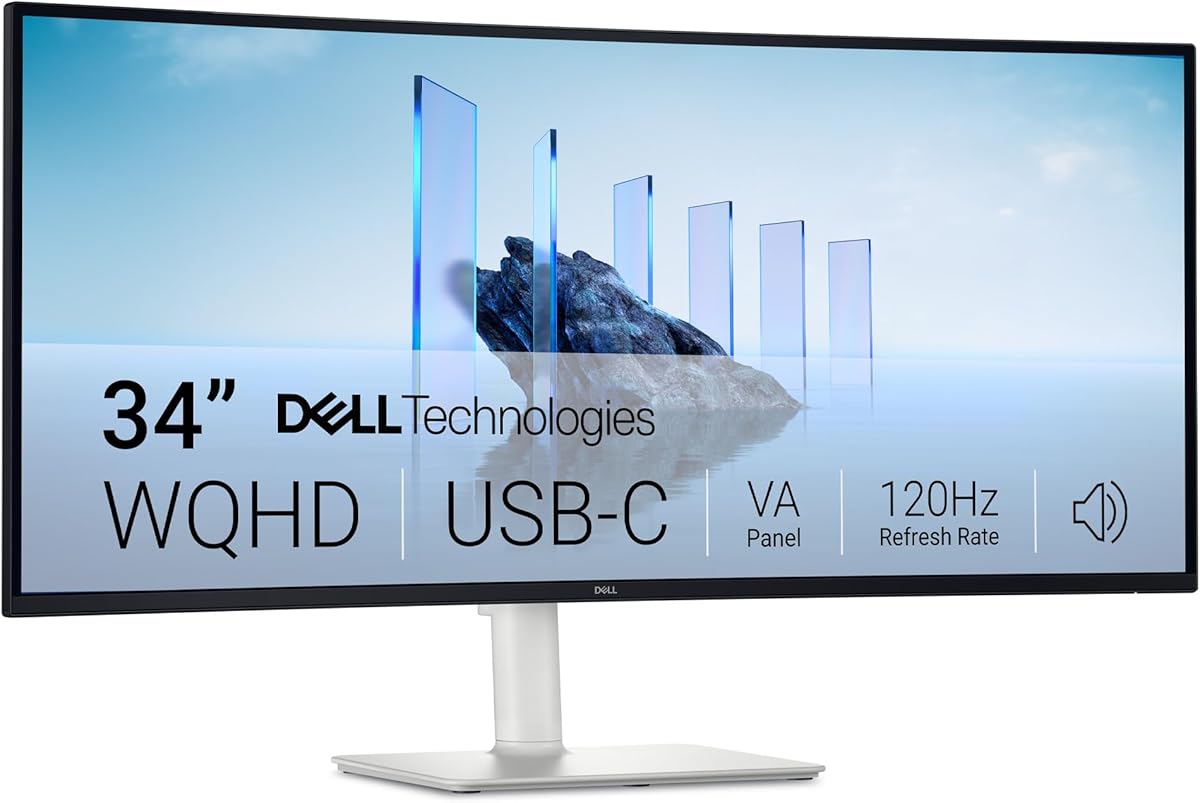
The Dell S3425DW prioritizes workspace over pixel density. Its 34-inch WQHD display can provide a broad canvas for placing an image beside adjustment panels, references, and file folders, reducing the need to switch among application windows. The monitor's 4.4 rating reflects a capable mix of creative color, contrast, connectivity, and comfort features.
We may earn a commission when you buy through this link, at no additional cost to you.
The VA panel delivers a 3000:1 contrast ratio, HDR readiness, 99% sRGB coverage, and 95% DCI-P3 coverage. Those attributes suit general photo finishing, content work, and visual review. A 120Hz refresh rate, FreeSync Premium support, and 0.03ms response time provide smooth motion for video and games, while improved built-in audio adds a little convenience to a creative desk.
Its wide format does not mean 34 inches of 4K-level detail. At 2560 x 1440, individual pixels are less dense than on a 27-inch 4K display, and VA panels can show more angle-dependent shift than IPS. The monitor is therefore best treated as a productivity-focused canvas rather than the ideal high-density close-up display for pixel-level retouching.
The S3425DW is a strong recommendation for editors who value room to organize their workflow more than maximum pixel density. USB-C power delivery and a single-cable setup can also simplify a laptop-based mobile editing station. For very fine print inspections, compare its pixel density with the ViewFinity S7 or ProArt PA279CV before deciding.
The 34-inch format is large enough to keep a photo, histogram, masks, and reference material visible together. This can make iterative adjustments faster and reduce the distraction of constantly minimizing and reopening panels.
With 99% sRGB, 95% DCI-P3 coverage, and a 3000:1 contrast ratio, the monitor provides a lively starting point for creative work. Professional delivery demands still warrant a controlled editing environment and regular calibration.
We may earn a commission when you buy through this link, at no additional cost to you.
The LG UltraFine 32U990A-S is the most specialized professional display in the guide. Its native 6K resolution of 6144 x 3456 produces 224 pixels per inch across a 32-inch panel, giving retouchers an exceptional amount of visible detail and working space. The 3.9 rating is the lowest among these selections, so buyers should weigh its exceptional specifications against that mixed user feedback.
We may earn a commission when you buy through this link, at no additional cost to you.
Color capability is a major attraction. The Nano IPS Black panel is listed at up to 99.5% Adobe RGB, 98% DCI-P3, and real 10-bit color depth, making it relevant to high-end photography, print workflows, 3D, and graded video. DisplayHDR 600 support, 2000:1 contrast, and rich shadow detail also suit detailed scene work. TÜV Rheinland Eye Comfort certification helps during lengthy editing sessions.
Thunderbolt 5 provides 96W power delivery, Mac and Windows compatibility, DisplayPort 2.1 support, and daisy chaining. That can simplify a sophisticated multi-display desk and reduce cable clutter. The trade-offs are a 60Hz refresh rate and a specification package that is excessive for light editing, school projects, or users who only need one application at a time.
This display makes the most sense for working professionals who regularly inspect large files, edit 6K video, or need a single reliable reference surface with extensive color coverage. Its native 6K canvas can show full-resolution content while preserving application interfaces. For many retouchers, however, the ASUS ProArt offers a more conventional balance of accuracy, resolution, and value.
At 224 PPI, the 6K panel allows 100-percent views to remain sharp while creative tool interfaces stay visible. The resolution also provides ample room for large images, reference panels, and detailed cleanup work without requiring a second display.
Up to 99.5% Adobe RGB, 98% DCI-P3, 10-bit color, and DisplayHDR 600 provide the specifications expected from a high-end creative display. These broad capabilities make the monitor especially relevant for print preparation, advanced color work, and HDR content.
We may earn a commission when you buy through this link, at no additional cost to you.
The ASUS TUF VG27AQM5A is a 27-inch QHD Fast IPS monitor with an emphasis on speed. Its 300Hz refresh rate and minimum 0.3ms gray-to-gray response time lead the gaming-oriented selections here, while a 95% DCI-P3 gamut gives it enough color capability to be considered for content creation as well as play.
We may earn a commission when you buy through this link, at no additional cost to you.
The monitor can feel exceptionally immediate when an editor pans through a large image, navigates nested masks, or scrubs a video timeline. ASUS Extreme Low Motion Blur Sync combines ELMB with variable-refresh-rate technologies, while Shadow Boost can reveal detail in dark areas without overexposing highlights. DisplayWidget Center provides mouse-based access to monitor settings, and integrated speakers add simple audio output.
For a dedicated retouching monitor, the limitations are important. There is no stated factory-calibration target or numeric color-difference specification, and the QHD resolution offers less detail than 4K or 6K alternatives. Its visual speed cannot substitute for high pixel density when a retoucher is examining pores, edges, or fine texture at magnification.
The TUF VG27AQM5A is best for a creative professional who is equally serious about games and wants a fast, colorful QHD display. It is also a good choice for animation or video work where fluid playback matters. Users whose priority is a static reference surface should favor the ASUS ProArt or a higher-resolution professional model.
The combination of 300Hz refresh and Fast IPS technology keeps cursor movement and interface changes crisp. This responsiveness is particularly noticeable during brushwork, transformations, and detailed mask adjustments.
A 95% DCI-P3 gamut and Shadow Boost support colorful editing and dark-scene inspection. The display can handle general creative tasks effectively, though it should not be selected over a factory-calibrated model for exacting color matching.
We may earn a commission when you buy through this link, at no additional cost to you.
The Samsung ViewFinity S6 offers a balanced productivity package for light retouching, graphic design, and general creative work. Its 4.3 rating is solid, and the QHD resolution provides more room than a Full HD display without introducing the complexity of a professional 4K or 6K workstation.
We may earn a commission when you buy through this link, at no additional cost to you.
The 100Hz refresh rate reduces lag and motion blur, making the screen more comfortable for scrolling through long documents, editing panels, and viewing motion. TÜV-certified eye comfort technology is another welcome feature for extended sessions. An ergonomic stand with tilt, pivot, and height adjustment helps position the screen properly, while HDMI and DisplayPort provide flexible connectivity.
The supplied specifications do not name the panel technology, color-gamut coverage, maximum brightness, or calibration performance. As a result, it is difficult to compare its color precision directly with the explicitly documented IPS, QD-OLED, and Nano IPS Black alternatives. It is best viewed as a versatile productivity display that can support retouching rather than a calibrated reference monitor.
The ViewFinity S6 makes sense for students, freelance editors, and hybrid workers who want a comfortable QHD screen without moving into a specialized creator display. It is also a sensible secondary display for file browsing, reference images, and captioning. For critical color decisions, choose a model with published gamut and accuracy targets.
Eye comfort certification, a smooth 100Hz refresh rate, and adjustable positioning help make the display suitable for extended work. These ergonomic qualities can be as valuable as raw resolution for a retoucher spending hours in one application.
QHD resolution offers enough space for common editing applications while remaining easier on graphics hardware than 4K or 6K. The result is a versatile option for basic photo finishing, content preparation, and design tasks.
We may earn a commission when you buy through this link, at no additional cost to you.
The AOC Q27G41ZE combines a 4.6 rating with a feature set that is clearly designed for speed. Its 27-inch QHD IPS panel supports a 240Hz refresh rate through DisplayPort and an overclocked 260Hz mode, along with a 0.3ms MPRT response time and Adaptive-Sync support across AMD and NVIDIA platforms.
We may earn a commission when you buy through this link, at no additional cost to you.
The high refresh rate can make retouching controls feel responsive, particularly for large documents, detailed selections, and image zooming. IPS technology offers wide viewing angles and precise image quality, while the 300-nit brightness and 1000:1 contrast ratio provide a conventional baseline for color work. Shadow Control, Game Mode presets, and an accessible graphical onscreen menu add flexible adjustment options.
The 300-nit maximum brightness is modest compared with many OLED and HDR-capable displays in this guide. The specifications also do not mention factory calibration, professional gamut coverage, or a stated Delta E target, so the display should not be treated as a color reference without additional setup. QHD resolution also limits fine-detail work.
The Q27G41ZE is a compelling choice for a retoucher who wants a responsive IPS screen and also values gaming. It offers a strong user rating, modern connectivity, and fast performance at a practical resolution. Color-critical professionals should look to the ProArt PA279CV, while HDR specialists may prefer the Samsung Odyssey OLED G6.
A 240Hz native refresh rate and 260Hz overclocked option provide fast interaction without introducing the same OLED burn-in considerations. This makes the AOC attractive for users who alternate between editing and games.
DisplayPort 1.4, two HDMI 2.0 ports, audio output, tilt adjustment, Shadow Control, and an onscreen menu create a flexible setup. The range of inputs also makes it convenient to connect editing laptops, desktops, and capture devices.
We may earn a commission when you buy through this link, at no additional cost to you.
The ASUS ProArt PA279CV is the most straightforward professional recommendation in the guide. It combines a 27-inch 4K UHD panel with factory calibration, 100% sRGB and 100% Rec. 709 coverage, and a Calman Verified Delta E below two. Those details make it easier to justify for precise retouching than displays that offer little published color information.
We may earn a commission when you buy through this link, at no additional cost to you.
The 4K resolution provides four times the pixel count of QHD, making fine edges, texture, and small retouching artifacts easier to inspect. IPS technology and a wide 178-degree viewing angle support consistent viewing, while the USB-C connection provides 65W power delivery. DisplayPort, HDMI, and a USB 3.1 hub create a flexible professional workstation.
The manufacturer describes the monitor as a 27-inch 4K display, although the supplied bullet list also contains a conflicting reference to a smaller Full HD display. That inconsistency warrants careful verification on the listing. It is also worth noting that the published gamut is standard sRGB and Rec. 709, so users working in Adobe RGB, DCI-P3, or wide-gamut print workflows may need a different display or careful profile management.
The ProArt PA279CV is an excellent choice for photographers and editors whose work is primarily delivered in standard web or sRGB spaces. It combines a sensible 4K canvas, documented accuracy, USB-C convenience, and a five-year warranty. It is the strongest balanced pick for color-critical work, while the LG remains the higher-resolution specialist and the Samsung OLED G6 offers superior contrast.
Factory calibration, Calman Verified status, and a Delta E below two provide concrete evidence of accuracy. Full sRGB and Rec. 709 coverage make the monitor especially suitable for standard photography, web graphics, and video workflows.
USB-C with 65W power delivery can carry video, data, and power through one cable, while the USB hub and separate DisplayPort and HDMI connections expand workstation flexibility. The included warranty adds confidence for professional use.
We may earn a commission when you buy through this link, at no additional cost to you.
The most useful retouching monitor balances accurate color, sufficient resolution, controlled reflections, comfortable ergonomics, and dependable connectivity. Prioritizing the features tied to your own files and delivery formats is more important than choosing the model with the longest specification list.
In short, look for documented gamut coverage and a published accuracy target, then calibrate the display before critical work.
Choose 4K or 6K when pixel-level inspection matters; QHD is adequate when speed, simplicity, and lower graphical demands come first.
Choose IPS for consistency, OLED for deep contrast and immediacy, and VA when a high-contrast workspace is the priority.
Prioritize real HDR performance for HDR delivery; otherwise, prioritize accurate SDR color and controlled room lighting.
Control reflections with a matte-like surface or a viewing hood, because ambient light can distort the apparent color of every image.
Prioritize a stand that adjusts to your posture, then match screen size to your desk and preferred viewing distance.
Use one-cable USB-C or Thunderbolt when portability matters, and verify bandwidth, power delivery, and docking needs before buying.
Use comfort features alongside sensible brightness, proper distance, and regular breaks rather than expecting any monitor to eliminate fatigue.
Begin by positioning the display at roughly arm's length with its top edge near or slightly below eye level. Connect through the port that best supports your computer, install the current display drivers, and select the correct native resolution. Before judging color, set the monitor to a standard sRGB or Adobe RGB profile as appropriate, disable any active display enhancements that distort appearance, and allow the screen to warm up.
Create a consistent editing environment by controlling room lighting and using a neutral desktop. Open representative images containing skin tones, saturated colors, deep shadows, and bright highlights, then adjust brightness and color using calibration software or a hardware calibrator. Keep the original image layer visible when making destructive adjustments, zoom to 100 percent for edge and texture inspection, and use masks or non-destructive adjustment layers to control where corrections are applied.
For OLED models, use the included protection features and avoid leaving static bright interfaces onscreen for long periods. For IPS, VA, and conventional professional displays, keep vents unobstructed, clean with a soft microfiber cloth, and avoid liquid cleaners. Update firmware and software when appropriate, keep the original calibration profile backed up, and recalibrate if the display, room lighting, or operating conditions change.
A 4K monitor is generally the most practical balance for photo retouching because it provides sharp detail without the extreme cost and processing demands associated with 6K. A 6K display is valuable for 6K video, large image libraries, and users who want to see multiple full-resolution applications at once. QHD can work for basic editing, though it requires more magnification when checking fine detail.
OLED monitors can be excellent for retouching because their deep blacks, strong contrast, wide color range, and fast response times make images look dimensional and controls feel responsive. Glossy finishes may reflect room light, however, and users should use OLED protection features while avoiding unnecessary static bright content. Matte IPS creator displays are often easier for neutral, controlled studio work.
Factory calibration is highly useful because it reduces the need for extensive color adjustment before starting work. A documented low Delta E and full sRGB coverage provide a trustworthy foundation for standard photo delivery. Even a calibrated display benefits from periodic checks, consistent room lighting, and a suitable output profile, especially when producing print or HDR work.
For most professional photo editors, yes. A 4K panel shows more image at once, makes edges and texture easier to inspect, and allows tool panels to remain visible beside a magnified image. The benefit is most noticeable on a 27-inch or larger display. A suitable graphics card and operating-system scaling settings are also important for a smooth experience.
USB-C is sufficient for many single-monitor setups, particularly when it provides 65W power delivery and supports the required display bandwidth. Thunderbolt is advantageous for high-resolution displays, fast file transfers, and daisy-chained screens. Check your computer's port capabilities and ensure the monitor's dock or hub includes the connections needed for your keyboard, storage, and other accessories.
For standard SDR editing in a controlled room, the monitor's calibration and contrast behavior matter more than reaching an extreme brightness figure. A brighter display can improve HDR work and accommodate a brighter environment, but excessive brightness may make subtle shadow adjustments difficult. A 300-nit model can be useful for general work, while advanced HDR workflows benefit from a DisplayHDR 600-class display.
No. Full sRGB coverage is usually sufficient for web content and many standard commercial assignments, and it is easier to manage than a wide-gamut workflow. Wide-gamut coverage becomes important when editing images captured in Adobe RGB, preparing print output, or matching the requirements of a client using a broader color space. Even with wide gamut, proper profiles and calibrated output remain essential.
One large 4K or 6K display provides a seamless, high-density workspace without a bezel separating the panels. Two smaller monitors can offer more physical desk organization and allow independent applications, but each panel may have lower resolution and the total pixel count can be substantial. Consider desk depth, viewing distance, application layout, and whether you need one calibrated reference screen before choosing.
The ASUS ProArt PA279CV is the strongest balanced recommendation for precise standard-color work, combining 4K detail, factory calibration, a sub-two Delta E claim, USB-C connectivity, and extended warranty coverage. The LG UltraFine 32U990A-S takes the lead when extreme pixel density, wide professional color coverage, and Thunderbolt 5 justify a specialized 6K setup. The Samsung Essential S30GD serves as the accessible starting point for users who want a colorful IPS panel and smooth everyday performance.
Prioritize the needs of your actual workflow over refresh rate or headline resolution. Color-critical retouchers should investigate documented accuracy, gamut, calibration options, and surface treatment. Video editors may place more value on HDR, smooth playback, and high bandwidth, while hobbyists and students can gain excellent utility from a well-equipped QHD IPS display. Desk size, ergonomics, and a controlled viewing environment deserve equal attention.
Monitor specifications and availability can change, and current prices should be checked on each product's listing before purchase. Compare the final configuration carefully, including panel details, port support, and warranty terms, so the selected display complements your computer and editing software. With the right combination of resolution, color capability, and comfort, a retouching monitor can become a dependable instrument for judging and perfecting every image.